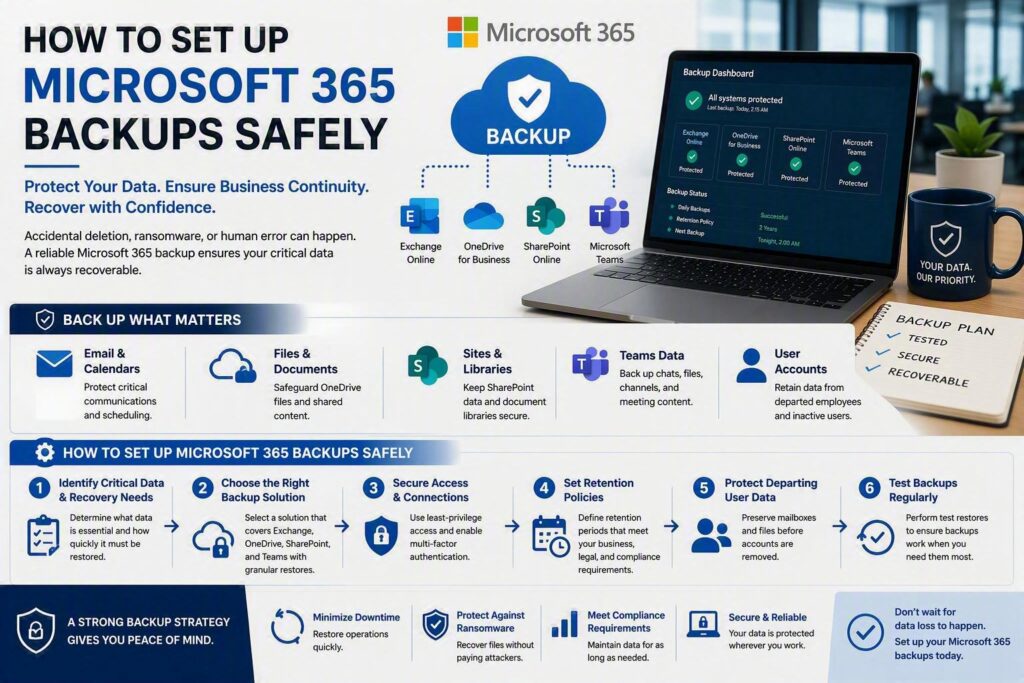
A deleted mailbox, missing OneDrive folder, or overwritten document can quickly become a serious business problem. Whether the issue is caused by accidental deletion, human error, a compromised account, or a ransomware incident, losing access to critical information can disrupt operations and create unnecessary stress.
Setting up Microsoft 365 backups helps protect your organization by creating separate, recoverable copies of your data. For small and medium-sized businesses, the goal is not to add complexity. It is to ensure important emails, files, and collaboration data can be restored when something goes wrong.
A reliable backup strategy should be secure, easy to manage, and thoroughly tested before an emergency occurs.
Microsoft 365 Retention Is Not the Same as Backup
Many organizations assume Microsoft 365’s built-in retention and recovery features eliminate the need for dedicated backups.
Microsoft 365 offers protections such as:
- Deleted item recovery
- Version history
- Retention policies
- Legal hold capabilities
While these features are valuable, they are not the same as a true backup solution.
Retention policies keep data within the Microsoft 365 environment according to defined rules. A backup solution creates a completely separate copy that can be restored independently when needed.
This distinction becomes important when:
- Users permanently delete content
- Administrators change retention settings
- Accounts become compromised
- Malware removes or corrupts data
- Large-scale configuration errors occur
Microsoft is responsible for maintaining the Microsoft 365 platform. Your organization remains responsible for protecting its own data and ensuring it can be recovered when necessary.
What Should Be Included in Your Microsoft 365 Backup?
Before selecting a solution, identify where your business data lives.
For most organizations, backup coverage should include:
- Exchange Online email
- OneDrive for Business
- SharePoint Online
- Microsoft Teams
Each service contains valuable information that may be critical to business operations.
Exchange Online
Email often contains:
- Contracts
- Client communications
- Approvals
- Financial records
- Vendor correspondence
Losing email data can significantly impact daily operations and compliance requirements.
OneDrive for Business
OneDrive commonly stores:
- Employee work documents
- Department files
- Project resources
- Draft proposals
- Personal business files
Employee departures can make OneDrive protection especially important.
SharePoint Online
SharePoint often contains:
- Shared documents
- Company policies
- Project libraries
- Team resources
- Business-critical records
These files are frequently relied on by multiple departments.
Microsoft Teams
Teams content may include:
- Chat conversations
- Shared files
- Meeting documentation
- Collaboration records
- Project discussions
Organizations often overlook Teams backups until they discover important information existed only within conversations.
Step 1: Identify Critical Data and Recovery Priorities
Start by determining which Microsoft 365 data is most important to your organization.
Ask questions such as:
- Which files would stop work if they disappeared?
- Which departments require the fastest recovery?
- What information must be retained for compliance?
- Which accounts hold sensitive business data?
For example:
- Law firms may prioritize client correspondence and document libraries.
- Nonprofits may focus on donor records and grant documentation.
- Financial organizations may require long-term retention of email and accounting records.
Once priorities are identified, establish recovery expectations.
Determine:
- How quickly data must be restored
- Which workloads require immediate recovery
- Which systems can tolerate some downtime
Clear recovery objectives help guide backup selection and planning.
Step 2: Choose a Dedicated Microsoft 365 Backup Solution
A dedicated Microsoft 365 backup platform should provide independent protection for your cloud data.
Look for features such as:
- Exchange Online backup
- OneDrive backup
- SharePoint backup
- Teams backup
- Granular recovery options
- Long-term retention controls
- Secure storage locations
The best backup solutions allow administrators to restore:
- Individual emails
- Mailbox folders
- Single files
- Entire mailboxes
- OneDrive accounts
- SharePoint sites
Recovery should be simple and efficient. During an emergency, searching through complicated restoration processes only increases downtime.
Step 3: Secure Backup Access Properly
Backup systems require administrative access to Microsoft 365.
Protect these connections by:
- Using dedicated administrative accounts
- Enabling multi-factor authentication
- Restricting excessive permissions
- Regularly reviewing access rights
Only authorized personnel should have permission to:
- Modify retention policies
- Delete backups
- Change backup configurations
- Initiate large-scale restores
Limiting administrative access helps reduce security risks while maintaining control over business-critical data.
Step 4: Create Appropriate Retention Policies
Retention determines how long backup copies remain available.
The correct retention period varies by organization.
Factors influencing retention include:
- Industry regulations
- Legal requirements
- Contractual obligations
- Internal governance policies
Some businesses may only require one year of recoverable data, while others need multiple years of historical records.
Consider using different retention periods for different data types:
- Daily working files
- Financial records
- Executive communications
- Client documentation
- Compliance-related records
Avoid automatically keeping everything forever. Long retention periods can increase storage costs and complicate recovery efforts.
Step 5: Protect Departing Employee Data
One of the most common causes of Microsoft 365 data loss occurs during employee offboarding.
Before removing user accounts:
- Review mailbox contents
- Preserve important OneDrive files
- Retain necessary Teams information
- Transfer ownership of business-critical documents
Create a formal offboarding process that defines:
- Who reviews departing-user data
- How information is transferred
- How long data should be retained
- When accounts can be permanently removed
Having backups is important, but structured offboarding procedures are equally critical.
Step 6: Test Restores Regularly
A backup solution should never be trusted simply because it reports successful backups.
Organizations should regularly test recovery procedures.
Consider testing:
- Individual email recovery
- File restoration
- SharePoint recovery
- OneDrive restoration
- Former employee data retrieval
Quarterly testing is a good starting point for most businesses.
Document:
- Recovery times
- Recovery procedures
- Access requirements
- Any problems discovered
Testing provides confidence that backups will perform as expected when an actual emergency occurs.
Common Microsoft 365 Backup Mistakes
Many organizations unknowingly leave gaps in their backup strategy.
Common mistakes include:
Assuming Built-In Recovery Is Enough
Microsoft 365 recovery tools are helpful but should not be your only protection against major data loss.
Backing Up Files But Ignoring Email
Business-critical communications often exist exclusively within mailboxes.
Forgetting Teams Data
Important projects and decisions frequently occur through Teams conversations rather than traditional documents.
Overlooking Shared Mailboxes
Department mailboxes often contain valuable operational information and should be protected.
Ignoring Former User Accounts
Valuable files and emails can disappear when employee accounts are removed without proper planning.
Never Testing Recovery
Backups that are never tested create false confidence until recovery becomes urgently necessary.
Backup Works Best as Part of a Complete Security Strategy
Microsoft 365 backups are most effective when combined with broader cybersecurity protections.
Important safeguards include:
- Multi-factor authentication
- Conditional access policies
- Device management
- Security monitoring
- User training
- Phishing awareness programs
- Account access reviews
Backups alone cannot prevent incidents, but they play a crucial role in recovery and business continuity.
Strong recovery planning ensures your team knows:
- Who to contact
- Who can approve restores
- How quickly recovery can occur
- What procedures should be followed during an incident
Organizations should also review backup system health and recovery readiness on a regular basis to ensure protection remains aligned with business needs.
Protect Your Microsoft 365 Data Before You Need It
Microsoft 365 has become the foundation of daily business operations for many organizations. Email, files, collaboration tools, and cloud storage all play critical roles in serving customers and supporting employees.
A proper backup strategy ensures these resources remain recoverable when accidental deletions, cyberattacks, administrative errors, or hardware failures occur.
At Myriad Technologies, we help organizations assess Microsoft 365 risks, implement reliable backup solutions, and create practical recovery plans that fit their operational requirements.
The best backup strategy is one that works quietly in the background, allowing your team to collaborate confidently knowing that important business data can be recovered whenever it is needed.