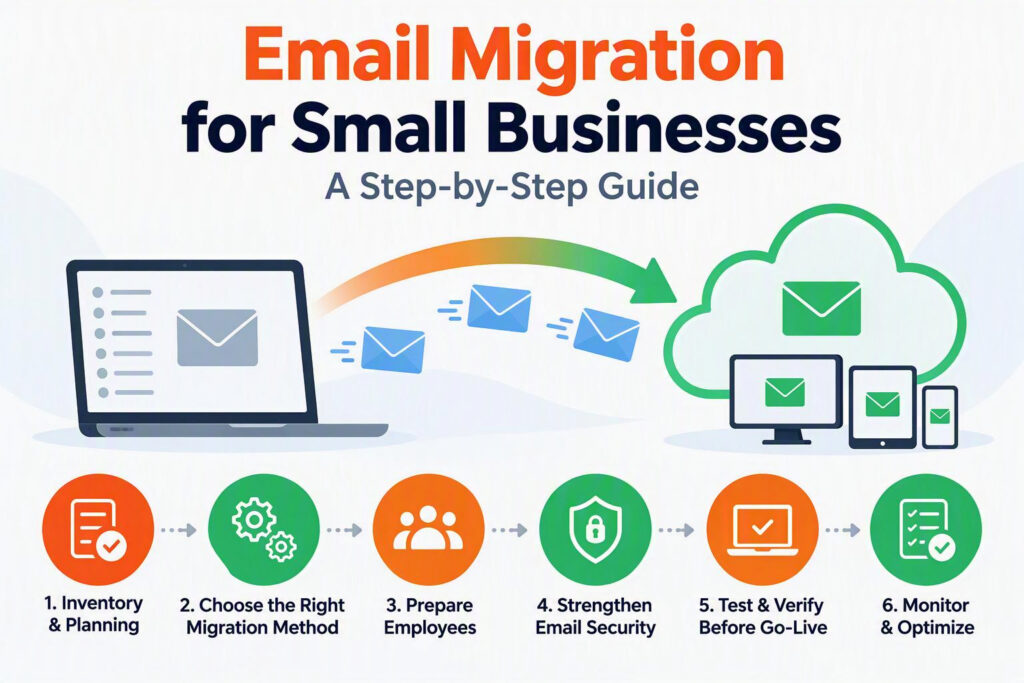
Email is essential to everyday business operations. When an email migration goes wrong, employees may lose access to important conversations, miss time-sensitive approvals, or find that shared inboxes are no longer receiving messages. A well-planned email migration for small businesses helps protect business communications and minimize disruption during the move.
Whether you are switching email providers, moving from an on-premises server to the cloud, or transferring between Microsoft 365 tenants, preparation is key. A successful migration should preserve email history, contacts, calendars, shared mailboxes, permissions, and mobile access while helping your team maintain productivity.
What Is Email Migration?
Email migration is the process of moving email accounts, messages, and related services from one platform to another. Depending on your setup, this can include:
- Individual mailboxes, folders, and archived messages
- Contacts, calendars, and inbox rules
- Shared mailboxes, aliases, and distribution lists
- Mailbox permissions and forwarding settings
- Domain and DNS records that route incoming email
The best email migration strategy depends on your current system, the number of users, the amount of data, and your business requirements. Moving a few accounts from a hosted email provider to Microsoft 365 is very different from transferring dozens of mailboxes from an on-premises Exchange server.
Migration planning is also a useful opportunity to review inactive accounts, outdated forwarding rules, and shared inboxes with unclear ownership. However, do not delete old information until you have confirmed your organization’s retention and compliance requirements.
1. Create a Complete Email Migration Inventory
One of the most common causes of migration problems is an incomplete inventory. Before selecting a migration date or changing technical settings, document your existing email environment and identify the people and processes that rely on it.
Your email migration checklist should include:
- All active mailboxes, including executive, part-time, contractor, and generic accounts
- Shared mailboxes such as info, billing, reception, support, and bookings
- Distribution lists, email aliases, forwarding rules, and external contacts
- Mailbox sizes, archives, retention requirements, and large attachments
- Calendars, contacts, mobile devices, and desktop email applications
- Business applications and devices that send email automatically
- Domain names, the current DNS provider, and access to the relevant accounts
This inventory helps prevent last-minute surprises. For example, discovering a critical shared inbox after the migration is complete can interrupt customer service. Similarly, a lack of access to your domain’s DNS settings can delay the changeover.
Speak with department leads as well as IT staff. An accounting team may rely on invoices delivered to a shared inbox, while another department may depend on shared calendars or automated email notifications. Identify and test these workflows before the migration begins.
2. Choose the Right Email Migration Method
There is no single migration method that works best for every business. The right approach depends on your organization’s size, technical environment, tolerance for downtime, and need to maintain access to the old system.
Staged email migration
A staged migration transfers mailboxes in batches while the old and new systems operate during a transition period. It can help larger organizations manage change in manageable phases, but it requires coordination between systems and users.
Cutover email migration
A cutover migration moves users to the new email platform in one planned change window. This can work for smaller businesses with straightforward email environments. However, problems with credentials, DNS records, or device settings can affect many users at once.
Hybrid email migration
A hybrid setup allows some mailboxes to remain in an existing Exchange environment while others move to the new platform. This can support a gradual transition, although it usually requires more technical planning and ongoing administration.
The goal is not simply to choose the fastest method. Consider how much disruption your business can reasonably manage and how important it is to maintain access to historical email and shared resources. For many small businesses, a phased approach offers a practical balance between continuity and control.
3. Prepare Employees for the Email Change
Email migration affects employees as well as technology. Staff may have established ways of organizing messages, using calendars, accessing email on their phones, and working with shared mailboxes. Clear communication can make the transition easier.
Before the migration, tell employees:
- What is changing and when the change will happen
- Whether they need new sign-in details or must authenticate again
- Whether Outlook or their mobile email app needs to be reconnected
- How to access shared mailboxes and calendars
- Where to get help if they cannot send or receive messages
- Whether a temporary service interruption is expected
Identify department contacts who can report issues and confirm that essential workflows are working. They do not need to troubleshoot technical problems themselves; they need to know which mailboxes and processes are most important to their teams.
Schedule the migration around your business calendar. Avoid payroll, month-end reporting, major events, and periods of heavy customer communication. An after-hours change may be suitable, provided someone is available to test the new system before employees return to work.
4. Protect Email Security During Migration
An email migration is an opportunity to strengthen security, but only if access and configuration are handled carefully. Protect administrator credentials, limit access to the people responsible for the migration, and review old accounts once the transition is complete.
Plan multi-factor authentication as part of the migration rather than leaving it until employees have adjusted to the new system. Provide instructions for setting up an authenticator app and support for anyone who needs help registering a device or replacing a lost one.
Review mailbox permissions and automatic forwarding rules. Forwarding business email to personal accounts may create privacy and compliance concerns, particularly for healthcare organizations, professional services firms, and businesses that handle confidential customer information.
You should also confirm your email backup and recovery arrangements. Find out which data is backed up, how long backups are retained, and how deleted messages can be restored. A copy created during migration can be helpful, but it should not automatically be treated as a replacement for a tested backup strategy.
5. Test the New Email System Before Updating DNS
A key stage of many email migrations is updating DNS records so your domain routes incoming messages to the new email provider. DNS changes can take time to propagate, meaning some senders may temporarily reach different destinations.
Before changing these records, run a pilot test with users from different departments and roles. Confirm that they can:
- Send and receive internal and external emails
- Open historical messages and folders
- Access shared mailboxes, aliases, and distribution lists
- View and use calendars and contacts
- Sign in from their usual computers and mobile devices
Test systems that send automated email as well. Website contact forms, printers, scanners, accounting platforms, appointment tools, and security systems may depend on existing SMTP settings. If these connections are overlooked, important notifications may stop working even when employees can use their new inboxes normally.
Define the criteria for a successful migration before testing begins. Clear acceptance criteria help your team identify which issues must be fixed before the final change and which can be addressed afterward.
6. Verify Email Delivery on Migration Day
A migration day checklist helps your team confirm that the new email environment is working as expected. Assign clear responsibilities: someone should monitor technical settings and mail flow, while another person helps employees sign in and reconnect their devices. Establish who can approve a delay or rollback if a serious issue occurs.
After updating DNS records, test email delivery from multiple external providers. Send messages to individual mailboxes, shared inboxes, aliases, and distribution lists. Test outgoing email as well as incoming messages, since configuration issues can affect sending and receiving differently.
Where possible, keep the previous email service available throughout the agreed transition period. This can help your team compare folders, investigate missing historical messages, and resolve questions. Avoid cancelling the old service immediately after the first successful test; confirm that the migration is complete and that required data is accessible first.
7. Complete Post-Migration Checks
Email migration does not end when employees can sign in. Monitor the new system over the following days and review support requests for recurring issues, including:
- Sign-in or authentication problems
- Missing messages, folders, or permissions
- Mobile device and desktop application issues
- Incorrectly routed messages or forwarding rules
- Shared mailbox, calendar, and automated email problems
Resolve these issues promptly and document the new email setup. Review administrator access, remove accounts that are no longer required, confirm that licensing matches business needs, and make sure staff know how to request future changes.
For businesses in the Fraser Valley without an in-house IT team, working with a managed IT partner can provide migration planning, technical support, and follow-up assistance to help keep the transition organized and minimize disruption.
Make Your Email Migration Smooth and Secure
A successful business email migration depends on planning, testing, communication, and follow-through. By documenting your current environment, choosing an appropriate migration method, protecting access, testing critical workflows, and monitoring the new system, you can reduce the risk of downtime and help employees stay productive.
The best email migration is one that keeps your business communications running reliably, protects important information, and allows your team to focus on serving customers rather than troubleshooting email.