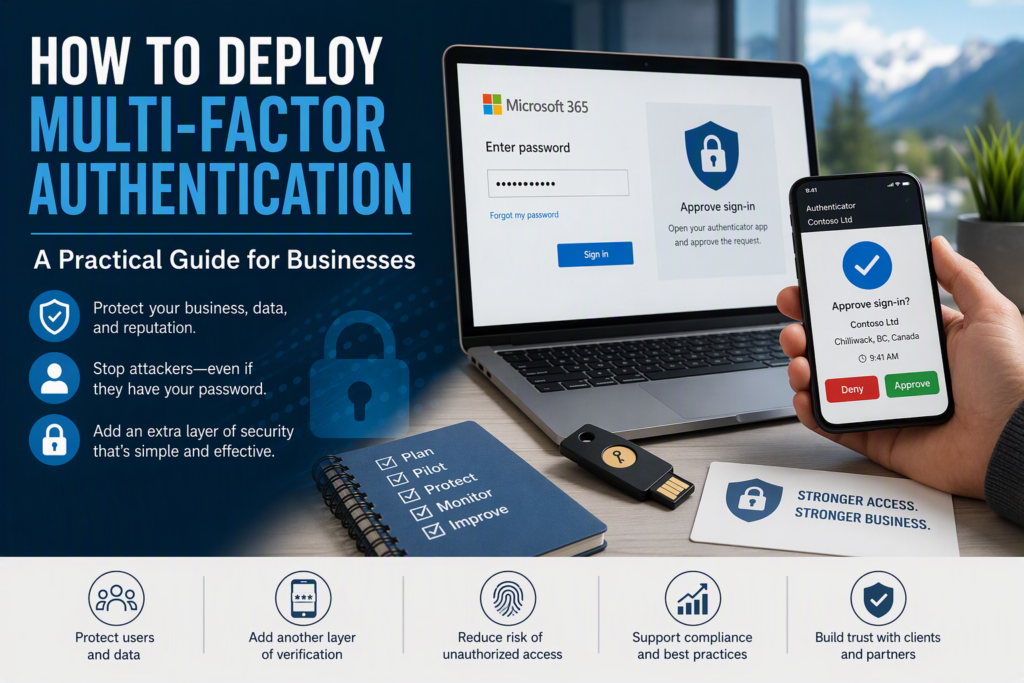
A stolen password should never be enough to access your business email, financial records, client files, or Microsoft 365 account. Yet passwords continue to be reused, guessed, phished, and exposed through third-party data breaches every day.
Learning how to deploy multi-factor authentication (MFA) effectively requires more than simply turning on a security setting. Businesses need a practical MFA deployment plan that protects sensitive information, reduces security risks, and fits the way employees actually work.
For small and midsize businesses, multi-factor authentication is one of the most effective cybersecurity improvements that can be implemented without major disruption. MFA adds another layer of identity verification, such as an authenticator app approval, security key, or time-based verification code.
If a cybercriminal obtains an employee’s password but cannot provide the second authentication factor, the attempted login can be blocked.
Why Multi-Factor Authentication Should Be a Priority
Business email accounts are frequent targets for cybercriminals because they can contain password reset messages, invoices, contracts, internal communications, financial information, and sensitive attachments.
Once an attacker gains access to an employee’s mailbox, they may be able to impersonate that employee, redirect payments, access confidential information, or use the compromised account to reach other business systems.
MFA significantly reduces the value of a stolen password. However, it is not a complete cybersecurity solution. Employees can still be tricked into approving a fraudulent sign-in request, while legacy applications and poorly configured systems can create security exceptions that require additional attention.
Even with these limitations, MFA closes a common path to unauthorized access and can help prevent the disruption and financial consequences associated with a compromised account.
This is especially important for professional offices, nonprofits, healthcare organizations, contractors, and growing local businesses that rely on cloud email, Microsoft 365, shared files, and remote access but may not have a large internal IT department.
A well-planned MFA rollout can strengthen security without requiring employees to become cybersecurity experts.
How to Deploy Multi-Factor Authentication Without Disrupting Your Business
The most effective approach to MFA deployment is usually a phased rollout.
Turning on a company-wide MFA policy without preparation can lead to unnecessary lockouts and support issues, particularly for remote employees, mobile workers, people who travel, or teams that rely on shared systems.
1. Create a Complete Account Inventory
Before enforcing MFA, identify every account that can access business systems.
Your inventory should include:
Employees
Business owners and executives
Contractors and temporary workers
Administrators
Former employee accounts
Shared accounts and mailboxes
Service accounts
Microsoft 365 accounts
Remote access accounts
Third-party applications
The goal is to understand who has access, what they can access, and whether that access is still required.
Protect Administrative Accounts First
Administrator accounts should be among the first accounts protected with MFA. These accounts may be able to create users, change security settings, access sensitive data, or disable security controls.
Because of their elevated privileges, administrators should use the strongest appropriate authentication method. Where practical, consider phishing-resistant authentication, such as a hardware security key.
Review Shared Accounts
Shared credentials can make both security and accountability more difficult.
If multiple employees use the same username and password, it may be difficult to determine who performed an action or quickly remove access when someone leaves the organization.
Where possible, replace shared credentials with individual user accounts and role-based permissions. This improves accountability while making MFA easier to manage.
2. Choose the Right MFA Authentication Methods
Not every MFA method provides the same combination of security and convenience.
An authenticator app that generates time-based codes is generally preferable to SMS-based authentication because phone numbers can be vulnerable to SIM-swapping and other forms of account takeover.
Push notifications can also provide a convenient sign-in experience. However, businesses should enable safeguards such as number matching where available to reduce the risk of employees accidentally approving malicious login attempts.
Consider Hardware Security Keys for High-Risk Users
Hardware security keys can provide strong protection for:
Business owners
IT administrators
Finance and accounting employees
Executives
Employees with access to sensitive information
Users with elevated system privileges
A security key may not be necessary for every employee, but it can be a valuable option when the potential consequences of an account compromise are high.
The right authentication method depends on your environment.
For example:
A field employee may need a simple mobile authentication option.
An employee without a smartphone may require a security key.
An administrator may benefit from phishing-resistant authentication.
A front-office employee handling sensitive client information may require stronger controls.
Businesses should also provide an approved backup authentication method while avoiding insecure fallback options.
3. Start With a Small MFA Pilot
Before enforcing MFA across the entire organization, begin with a small pilot group.
Choose employees who represent different working environments, such as:
Leadership
Office staff
Remote workers
Mobile employees
Administrators
Employees using specialized business applications
Have the pilot group enroll in MFA and use their accounts normally from their usual locations and devices.
A pilot can uncover problems that may not be obvious from an administrator’s dashboard.
For example:
An older email application may not support modern authentication.
A tablet may require reconfiguration.
A third-party application may not support the required MFA method.
An employee may need help setting up their authenticator app.
A legacy business application may require additional configuration.
Finding these problems during a controlled pilot is much easier than discovering them after a company-wide enforcement date.
Communicate the MFA Rollout Clearly
Employees should understand:
Why MFA is being introduced
When it will become mandatory
What they need to do
Which authentication method they should use
Where to get help
A short, plain-language communication is often more effective than a lengthy technical security policy.
4. Configure Practical MFA Access Policies
After employees have enrolled, businesses need policies that determine when MFA is required.
Most organizations should consider requiring MFA when users access:
Microsoft 365
Business email
Cloud file storage
Collaboration applications
Remote access systems
Administrative portals
Other sensitive cloud applications
Conditional access policies can also increase security requirements when a sign-in originates from an unfamiliar location, device, network, or other potentially risky environment.
Avoid Excessive MFA Prompting
Security policies should balance protection with usability.
Requiring employees to authenticate repeatedly throughout the day can create MFA fatigue, particularly when employees are using trusted, managed devices.
At the same time, being too permissive with contractors, unmanaged devices, or unusual sign-in activity can increase risk.
The objective is straightforward:
Make legitimate access convenient while making unauthorized access difficult.
Manage MFA Exceptions Carefully
Avoid permanently excluding users simply because MFA creates short-term inconvenience.
Any exception should be:
Documented
Justified
Time-limited where possible
Reviewed regularly
Protected by alternative security controls
If an older application cannot support MFA, consider whether it can be upgraded, replaced, or isolated rather than creating a permanent security gap.
5. Prepare for Lost Phones and MFA Recovery
A successful MFA deployment needs a clear account recovery process.
Employees can lose phones, replace devices, travel unexpectedly, or lose access to their normal authentication method. Without a recovery procedure, a relatively small problem can become a significant business interruption.
Your organization should establish:
Who is authorized to reset MFA.
How an employee’s identity will be verified.
What information must be confirmed before access is restored.
How recovery requests are documented.
What happens when a device is lost or stolen.
Be particularly cautious about urgent MFA reset requests received by email or text.
Account recovery is a common target for social engineering. An attacker may attempt to convince an employee or IT administrator to remove MFA protections or reset an account.
Employees should report lost or stolen devices promptly.
They should also understand that an unexpected MFA approval request should never be automatically accepted. If they did not initiate the login, they should deny the request and contact IT support.
6. Combine MFA With Other Cybersecurity Controls
MFA is an important layer of protection, but it should not be your entire cybersecurity strategy.
It becomes significantly more effective when combined with:
A business password manager
Regular software updates
Endpoint and device security
Secure configuration management
Reliable backups
Security awareness training
Email security
Access controls
Regular account reviews
Strengthen Business Email Security
Email security is particularly important because phishing remains a common way attackers attempt to steal credentials or convince employees to perform fraudulent actions.
Employees should be trained to slow down when they receive requests involving:
Passwords
Financial transfers
Changes to payment information
Unexpected attachments
Sensitive documents
Urgent requests from executives
Requests to approve unfamiliar login attempts
A quick verification through a trusted communication method can prevent a costly mistake.
7. Monitor Sign-Ins and Security Alerts
MFA deployment should not end when employees complete enrollment.
Businesses should regularly review available security logs and alerts for unusual activity, including:
Repeated failed login attempts
Unexpected MFA prompts
Sign-ins from unusual regions
New or unfamiliar devices
Suspicious authentication activity
Changes to account security settings
These signals can help identify potential account compromise before it becomes a larger incident.
Organizations without dedicated internal IT staff may benefit from working with a managed IT or cybersecurity provider that can monitor security events and help investigate suspicious activity.
8. Measure MFA Adoption and Continue Improving
After MFA has been deployed, confirm that every active user is enrolled and that privileged accounts are using the strongest appropriate authentication method.
Regularly review:
MFA enrollment rates
Administrator accounts
Inactive accounts
MFA exceptions
Recovery requests
Unsupported applications
Former employee accounts
Third-party applications
These reviews help determine whether your MFA policy works in everyday business operations rather than simply appearing complete on paper.
Include MFA in Employee Onboarding and Offboarding
MFA should also be part of your standard employee lifecycle.
New employees should complete MFA enrollment during account setup rather than weeks after receiving access.
When an employee or contractor leaves the organization, access should be removed promptly from:
Microsoft 365
Email
Cloud applications
Remote access tools
Business applications
File-sharing platforms
Other systems containing company information
This helps reduce the risk of former users retaining unnecessary access.
Multi-Factor Authentication for Businesses in Chilliwack and the Fraser Valley
For organizations across Chilliwack and the Fraser Valley, deploying MFA can provide meaningful protection against unauthorized account access without creating unnecessary disruption for employees.
The goal is not simply to turn MFA on.
A successful MFA deployment starts with understanding your accounts, protecting privileged users, choosing appropriate authentication methods, testing the process, communicating with employees, and establishing reliable recovery procedures.
Start with the accounts that matter most, address high-risk access first, and make sure employees have support when they need it.
When implemented thoughtfully, multi-factor authentication can become a practical and sustainable part of your organization’s overall cybersecurity strategy.