An email migration that starts at 4:00 p.m. on Friday and is still causing problems on Monday morning is more than an IT issue. It is a business interruption.
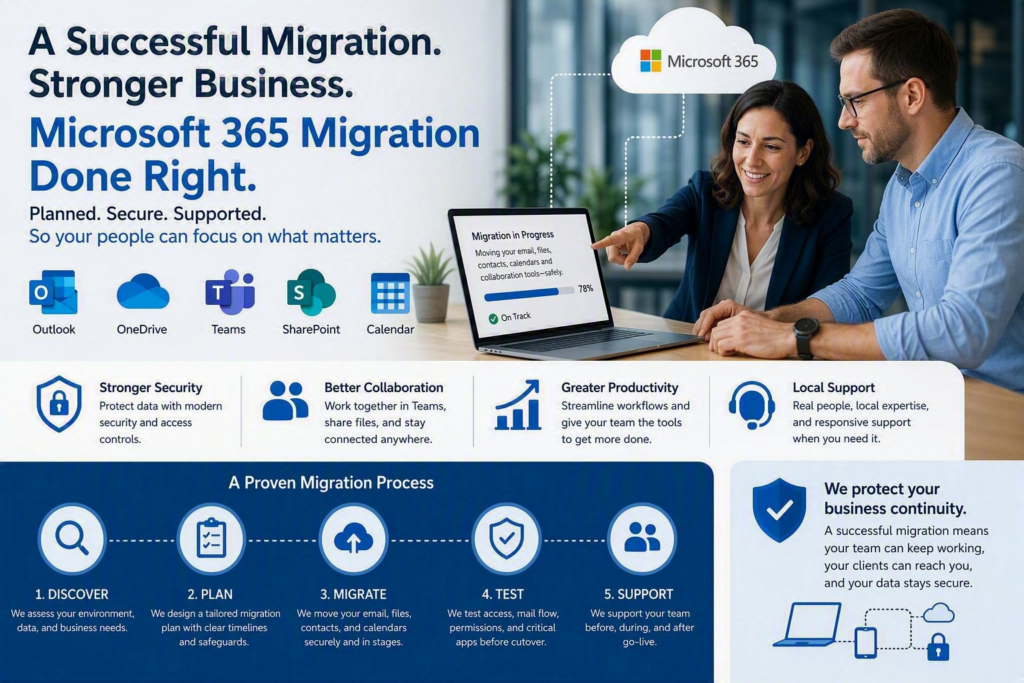
That is why a successful Microsoft 365 migration requires more than creating user accounts and transferring data. Microsoft 365 migration services help businesses move email, files, calendars, contacts, Microsoft Teams, OneDrive, and SharePoint in a structured way while reducing downtime and protecting important business information.
For small and midsize businesses, Microsoft 365 can provide better accessibility, collaboration, security, and flexibility. However, the migration process needs careful planning. Employees need access to the information they rely on, customers need to be able to reach your team, and sensitive business data needs to remain properly protected throughout the transition.
Why Businesses Need a Microsoft 365 Migration Plan
Many businesses consider Microsoft 365 because their existing email system is outdated, difficult to manage, or no longer supports the way their employees work.
Others may be dealing with:
Local email servers that are expensive to maintain
Multiple file-sharing platforms
Personal cloud storage accounts
Aging on-premises infrastructure
Limited remote-work capabilities
Inconsistent security controls
Difficult-to-manage user accounts
Disorganized shared files and folders
Microsoft 365 can bring many of these services together, but moving to the platform requires more than simply transferring information.
For example, a SharePoint or OneDrive migration is not just a matter of copying folders from one location to another. Someone needs to determine which files are still required, who should have access, where shared documents should be stored, and how employees will work with those files after the migration.
Without proper planning, businesses can end up with duplicate documents, incorrect permissions, missing files, or employees who are unsure where information should be stored.
Email requires the same level of preparation. Business mailboxes can contain years of correspondence, attachments, calendars, contacts, shared mailboxes, aliases, and other information that employees depend on every day.
A professional Microsoft 365 migration starts by understanding the existing environment before making major changes.
What Is Included in Microsoft 365 Migration Services?
Every Microsoft 365 migration is different. The right approach depends on your current email platform, number of users, amount of data, business requirements, and existing IT infrastructure.
For example, migrating from Microsoft Exchange is different from moving from Google Workspace, another hosted email provider, or a combination of local servers and cloud applications.
A well-planned Microsoft 365 migration normally starts with an assessment of the current environment.
This may include reviewing:
User accounts and mailboxes
Email domains and DNS records
Existing email systems
Microsoft 365 licenses
Computers and mobile devices
File servers and shared folders
OneDrive and SharePoint requirements
Microsoft Teams requirements
User permissions
Security settings
Applications that send or receive email
Shared mailboxes and distribution lists
Data retention requirements
This discovery stage can identify problems before they become migration-day emergencies.
For example, a business may discover that an office scanner is still configured to send email through an old mail server or that a former employee’s account still has access to important shared files.
Key Steps in a Microsoft 365 Migration
A professional migration may include:
Preparing Microsoft 365 users, licenses, domains, and security settings
Migrating email, calendars, contacts, and other agreed-upon data
Moving business files to SharePoint or OneDrive where appropriate
Configuring Microsoft Outlook and mobile devices
Setting up Microsoft Teams and shared collaboration tools
Reviewing user and file permissions
Testing email delivery and access
Testing important business applications
Updating DNS and mail-flow settings
Supporting employees during the transition
Providing post-migration troubleshooting and support
The goal is not to force every organization into the same migration process.
A small professional office may only need a carefully planned email migration over a weekend. A larger organization may benefit from a phased migration that includes pilot users, SharePoint, Teams, device management, and additional security improvements.
Microsoft 365 Migration and Security
Security should be part of the migration from the beginning, not something added after the project is complete.
Moving to Microsoft 365 gives businesses an opportunity to review security practices that may have developed over several years.
This can include outdated accounts, weak passwords, excessive file permissions, unmanaged devices, and informal document-sharing practices.
Organizations should consider security controls such as multi-factor authentication, administrator protections, conditional access policies, appropriate permissions, and clear employee onboarding and offboarding procedures.
Multi-factor authentication can add an extra step when employees sign in, but it also means that a stolen password alone may not be enough for someone to access a Microsoft 365 account.
Microsoft 365 Permissions Matter
File permissions also need careful attention.
Giving every employee access to every folder may seem convenient, but it can create privacy, security, and compliance concerns.
At the same time, permissions that are too restrictive can prevent employees from accessing the information they need to do their jobs.
A good Microsoft 365 migration should create a practical balance between security and usability.
Employees should have access to the information they need without automatically receiving access to everything.
Microsoft Teams, OneDrive and SharePoint Migration
Microsoft 365 is more than email.
Many businesses also use Microsoft Teams, OneDrive, and SharePoint for communication, document management, and collaboration.
During a Microsoft 365 migration, it is important to decide how each platform will be used.
For example:
OneDrive is generally suited to an individual’s work files, while SharePoint can provide centralized storage for team and organizational documents. Microsoft Teams can bring conversations, meetings, files, and collaboration into one workspace.
Businesses should establish clear guidelines so employees understand where different types of information belong.
This becomes especially important when moving away from traditional network drives.
Employees who are accustomed to saving everything on a shared drive may need guidance on how to work with SharePoint and OneDrive. They may also need to understand how file synchronization works and how to share documents safely.
A well-planned migration should make these changes easier rather than leaving employees to figure them out on their own.
Employee Support Is a Critical Part of Migration
The technical side of a Microsoft 365 migration is only one part of the project.
Employees also need to know what is changing and what they need to do.
Before the migration, businesses should communicate:
When the migration will take place
Whether employees need to change passwords
How they will sign in
Whether Outlook needs to be reconfigured
How mobile email will work
Where files will be located
Whether Teams or SharePoint will work differently
Who to contact if something does not work
Even a short, simple communication can significantly reduce confusion.
Training should also match the size of the change.
If employees already use Outlook and Teams, they may only need a short orientation. If the business is moving from traditional shared drives to SharePoint and OneDrive, more practical training may be necessary.
Employees may need help learning how to:
Find documents
Sync files
Share files
Collaborate with coworkers
Use Teams
Recover previous versions of documents
Understand personal versus shared storage
This is where local IT support can make a significant difference.
When an employee cannot access an important mailbox or a manager cannot locate a critical document, they need quick assistance and someone who understands the impact on the business.
Myriad Technologies takes a practical approach to Microsoft 365 migrations, helping businesses prepare for the technical changes while providing support that is easy for employees to understand.
Common Microsoft 365 Migration Problems
One of the biggest Microsoft 365 migration risks is assuming that the project will be simpler than it actually is.
Most migrations are manageable with proper preparation, but problems can occur when businesses do not fully understand their existing environment.
Missing or Incomplete Data
Important information may be stored in more places than expected.
For example, business data could exist on:
Local computers
Network servers
External drives
Old email archives
Personal cloud accounts
Shared mailboxes
Legacy applications
An inventory of existing data helps identify what needs to be migrated and what can safely be left behind.
Email Delivery Problems
Email delivery is another important consideration.
DNS records and mail-flow settings need to be updated correctly so new messages reach Microsoft 365 after the migration.
Businesses should also test systems that depend on email, including:
Invoicing software
Appointment reminders
Contact forms
Printers and scanners
CRM platforms
Automated notifications
Line-of-business applications
Testing these systems before and after the migration can prevent unexpected disruptions.
Incorrect Permissions
Moving files without reviewing permissions can create security problems.
Employees may suddenly have access to information they should not see, while others may lose access to documents they need.
Permissions should therefore be reviewed as part of the migration rather than treated as an afterthought.
Lack of Post-Migration Support
The migration is not necessarily finished when everyone can send and receive email.
The first few days often reveal smaller problems.
Someone may not see an old folder in Outlook. A mobile device may need to be reconfigured. A shared calendar may not appear correctly. Employees may have questions about where to save documents.
Having post-migration support available allows these issues to be resolved quickly instead of becoming long-term workarounds.
When Is the Best Time to Migrate to Microsoft 365?
There is no single migration window that works for every business.
A Friday evening may be appropriate for an organization that operates primarily during normal weekday hours. However, a business that serves customers throughout the weekend may need a different schedule.
Larger organizations may benefit from a phased Microsoft 365 migration.
A pilot group can be migrated first so the IT team can identify potential problems before moving everyone else.
This approach can be especially useful when a business has:
Many employees
Multiple locations
Large amounts of data
Complex applications
Multiple email domains
Extensive SharePoint requirements
Strict security requirements
The migration schedule should be based on the organization’s actual operations rather than simply choosing the most convenient weekend.
How Much of Microsoft 365 Should You Migrate?
Another important decision is determining the scope of the project.
Some businesses may initially need:
Microsoft 365 email
Outlook
OneDrive
Basic Teams functionality
Other organizations may want to use the migration as an opportunity to implement:
SharePoint
Microsoft Teams
Device management
Advanced security controls
Improved file permissions
Better backup practices
Modern collaboration workflows
There is no requirement to change everything at once.
Starting with the most important business requirements can reduce complexity. In other situations, completing related projects together may be more efficient because the infrastructure is already being reviewed.
The right approach depends on your budget, internal resources, business operations, and tolerance for change.
Why Work With a Microsoft 365 Migration Partner?
A Microsoft 365 migration affects much more than your email system.
It can affect employees, customers, files, applications, security, communications, and daily business operations.
An experienced IT partner can help you understand:
What needs to be migrated
What does not need to be migrated
What risks exist
How long the migration may take
What employees need to know
How security should be configured
How files should be organized
What testing should happen before cutover
What support is required afterward
You should also receive a clear explanation of what is included in the project and what is not.
A good migration plan should answer simple questions:
What are we moving?
When are we moving it?
How will we test it?
What happens if something goes wrong?
Who will support our employees?
These answers provide businesses with confidence before making significant changes to their IT environment.
Make Your Microsoft 365 Migration Easier
A Microsoft 365 migration should leave your organization in a better position than where it started.
The goal is not simply to move email from one server to another. A successful migration can provide a more secure, organized, and flexible technology environment for your employees.
With the right planning, businesses can migrate email, files, Teams, SharePoint, and OneDrive while minimizing disruption and helping employees adapt to the new environment.
The most valuable result is not simply having Microsoft 365.
It is having the confidence that your employees can access the information they need, communicate with customers, collaborate with their teams, and continue working without unnecessary technology problems.
If your business is considering a move to Microsoft 365, proper planning and professional Microsoft 365 migration services can make the transition significantly smoother.