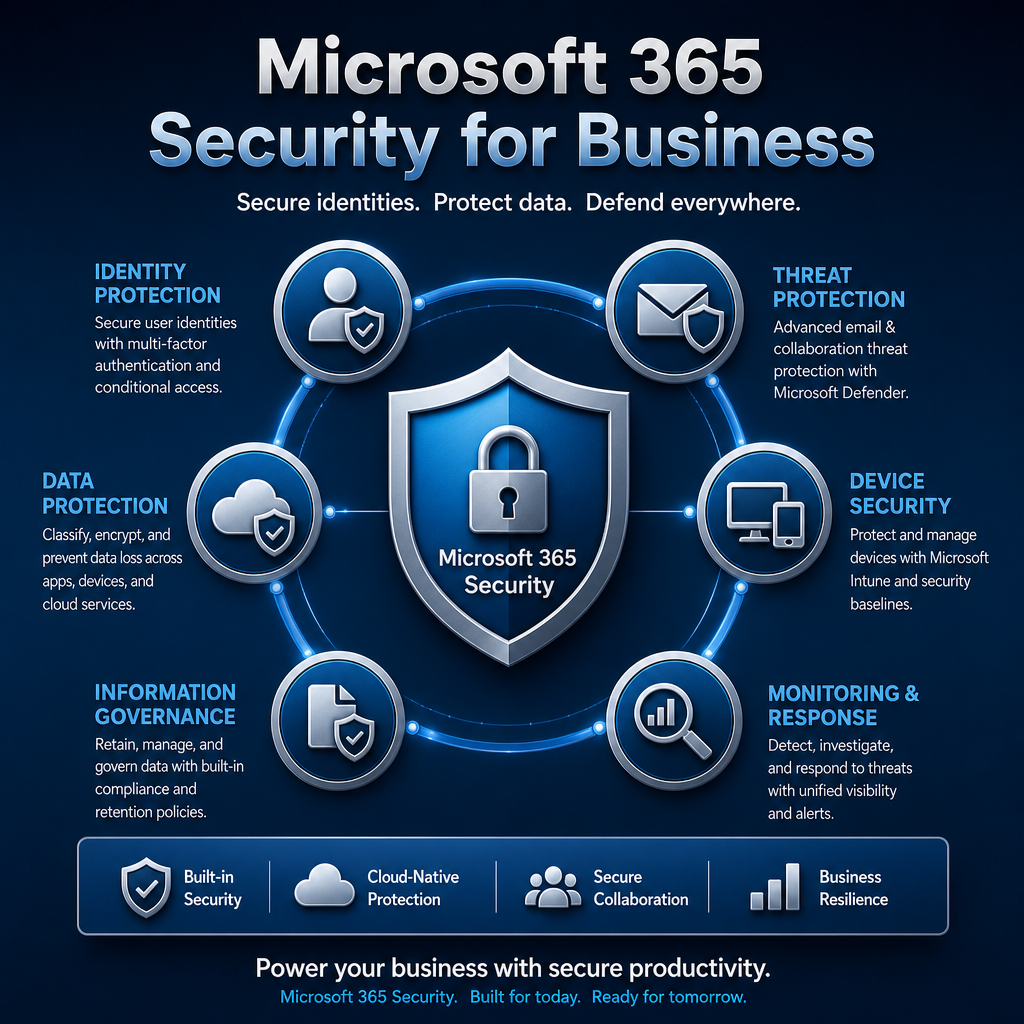
A convincing phishing email can arrive in the inbox of a bookkeeper, office manager, or executive at 8:15 a.m. It may look like a shared document, a voicemail alert, or an urgent request to update a password. One rushed click can expose accounts, redirect payments, or give an outsider access to files your organization relies on every day. That is why Microsoft 365 security for business needs to be treated as an operating priority, not a setting to revisit after a problem.
Microsoft 365 gives small and midsize organizations excellent tools for email, document sharing, collaboration, and remote work. But the platform is not automatically configured for the way your organization works, the data you hold, or the risks you face. Good security comes from making thoughtful choices about identities, access, devices, data, and response procedures.
Microsoft 365 Security for Business Starts With Identity
Your Microsoft 365 account is more than an email address. It can be the key to Teams conversations, SharePoint sites, OneDrive files, cloud applications, payroll information, and client communications. If an attacker gains control of one account, they may have a useful starting point for reaching much more.
Multifactor authentication, often called MFA, should be a standard requirement for every user. It asks employees to verify sign-ins with something beyond a password, such as an authentication app or security key. This greatly reduces the damage that can result from a stolen or reused password.
MFA is not identical to a blanket approval process, though. Employees should understand that they must never approve an unexpected sign-in prompt. Attackers sometimes send repeated prompts hoping someone will accept one simply to make the notifications stop. Clear guidance, supported by prompt IT help when a prompt looks suspicious, matters as much as turning the feature on.
Password practices also deserve a practical review. Long, unique passwords stored in an approved password manager are generally more useful than complicated rules that encourage people to write passwords down or reuse them. Administrative accounts should have stronger protections than ordinary accounts, and no one should use an administrator account for routine email and web browsing.
Control Access Without Slowing Down Good Work
Security controls should support people doing their jobs, not make every task frustrating. The goal is to give each person the access they need and remove access they no longer need.
For example, a receptionist may need access to a shared calendar and general office documents but not financial records. A temporary contractor may need a project folder for two months, not access to every Team or SharePoint site. When a staff member changes roles or leaves the organization, their account, licenses, shared mailboxes, file ownership, and access permissions should be reviewed promptly.
Conditional access policies can add another sensible layer. Depending on the Microsoft 365 plan and your security needs, these policies can require MFA, block legacy sign-in methods, limit access from unfamiliar locations, or require a managed device before sensitive data can be opened. The right configuration depends on your workforce. A healthcare office handling sensitive records may need tighter controls than a small team that works only from one secured location. Both still need a deliberate plan.
Guest access deserves the same attention. Sharing with clients, consultants, board members, or partner organizations can be useful, but it should not become an open door. Set rules for who can invite guests, how long guests retain access, and whether sensitive folders can be shared externally. Review guest accounts regularly, especially after projects end.
Defend Email Where Most Attacks Begin
Email remains one of the most common ways criminals reach organizations. Modern scams are not always obvious. They may impersonate a supplier, use a real employee name, or take over a legitimate account and continue an existing email conversation.
Microsoft 365 email protections can help filter spam, malware, and suspicious messages before they reach employees. More advanced options may scan links and attachments, warn users about impersonation attempts, and help administrators investigate threats. What is available depends on your Microsoft 365 licensing, so it is worth confirming that your protection level matches the sensitivity of your work.
Technology alone cannot decide whether a request to change banking details is legitimate. Build a simple verification process for financial or confidential requests. If a vendor emails revised payment instructions, confirm the change through a known phone number or established contact, not by replying to the email. If an executive sends an unusual request for gift cards, payroll files, or an urgent wire transfer, verify it another way.
Staff training works best when it is brief, repeated, and tied to real situations. Employees do not need a lecture on every cyber threat. They need to recognize the signals that should make them pause: unexpected attachments, login pages that do not look right, unusual urgency, payment changes, and messages that bypass normal procedures.
Protect Files, Sharing, and Everyday Collaboration
OneDrive, SharePoint, and Teams make it easier to work from different locations and keep documents out of personal email accounts. They also make it easier for sensitive information to travel quickly if sharing is not managed well.
Begin by identifying what information needs extra care. Client records, health information, financial documents, employee files, legal documents, and donor information should not all be handled as ordinary shared files. Labels, sharing restrictions, retention rules, and data loss prevention controls can help protect sensitive content from being sent or shared inappropriately.
Avoid building a maze of permissions that no one can maintain. Instead, organize files around clear teams, departments, and projects. Use group-based access wherever possible, name sites and Teams clearly, and assign owners who understand what belongs there. When ownership is vague, access tends to expand over time and sensitive files become harder to locate or protect.
Backup planning is another area where assumptions can cause trouble. Microsoft 365 provides service availability and retention features, but that does not automatically mean every deleted, overwritten, or maliciously encrypted file can be recovered in the way your organization expects. A separate backup strategy may be appropriate, particularly for critical email, SharePoint sites, and OneDrive data. The right choice depends on your recovery requirements, compliance obligations, and how costly a prolonged loss of data would be.
Secure the Devices That Connect to Microsoft 365
A protected account can still be exposed through an unprotected laptop, phone, or home computer. Devices that access business email and files should receive operating system updates, endpoint protection, and appropriate screen-lock settings. Lost devices should be capable of being located, locked, or wiped when necessary.
Mobile device management can be especially helpful for organizations with a mix of company-owned and personal phones. It can protect business data without giving the organization unnecessary visibility into an employee’s personal photos or messages. That balance matters. A policy that is too intrusive may be ignored, while a policy that is too loose can leave confidential data sitting on an unmanaged device.
For remote workers, secure Wi-Fi practices and clear expectations are also worthwhile. Public Wi-Fi, shared family computers, and personal email forwarding create avoidable risk. Employees should know where business files belong and whom to contact if a device is lost, stolen, or behaving strangely.
Monitor, Test, and Prepare for the Call You Hope Never Comes
Security is not a one-time project. Accounts change, employees come and go, new applications are connected, and attackers adjust their tactics. Regular review gives you the chance to catch problems before they become emergencies.
A sensible Microsoft 365 security review should cover sign-in activity, inactive accounts, administrator roles, external sharing, forwarding rules, device compliance, and security alerts. Email forwarding rules deserve special attention because criminals often create hidden rules after compromising an account, allowing them to watch messages even after a password is changed.
Your organization should also know what to do if someone reports a suspicious email or believes their account has been compromised. Employees need a simple, blame-free reporting path. The response plan should include containing the account, reviewing recent activity, removing malicious rules, checking affected devices, resetting credentials, and communicating with the right people. For some organizations, regulatory, legal, or client notification obligations may apply as well.
At Myriad Technologies, we see the value of addressing these details before an incident forces rushed decisions. A tailored approach is usually more effective than adding every possible control at once. It keeps the focus on the risks that could actually interrupt your operations, damage trust, or expose sensitive information.
The next useful step is not to wait for a major technology project. Start by asking a few practical questions: Does every account use MFA? Who has administrator access? Can former staff still sign in? What happens when a suspicious payment request arrives? Clear answers to those questions can turn Microsoft 365 from a convenient collection of apps into a safer foundation for the work your organization does every day.