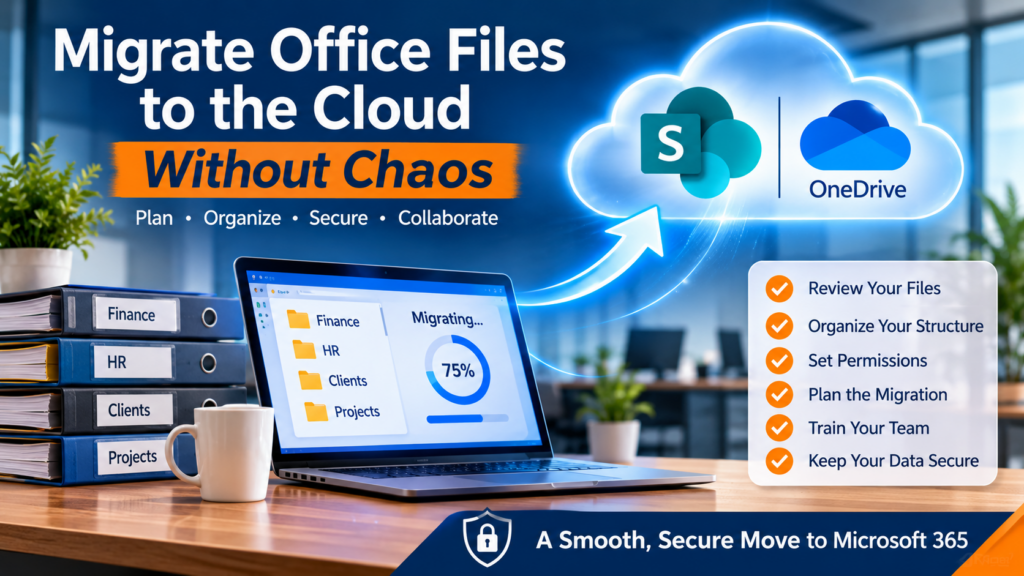
Moving business files from a traditional office server to cloud storage can improve productivity, security, and collaboration. However, without proper planning, a cloud file migration can quickly become a frustrating experience for employees and business owners.
From misplaced documents and duplicate folders to missing permissions and interrupted workflows, there are several challenges businesses need to consider before moving their files.
For small and medium-sized businesses, migrating office files to the cloud is about more than simply transferring documents. It involves creating a secure, organized, and accessible file management system that supports the way employees work.
Whether your organization is moving from a traditional network drive to Microsoft SharePoint, adopting OneDrive, or upgrading its existing Microsoft 365 environment, having a clear migration strategy can make all the difference.
Here is how to migrate office files to the cloud while minimizing disruption to your business.
Why Businesses Are Moving Office Files to the Cloud
Traditional file servers have served businesses well for years. However, as remote work, digital collaboration, and cybersecurity requirements continue to evolve, many organizations are looking for more flexible file storage solutions.
Cloud storage allows authorized employees to access business documents from different locations and devices without depending entirely on an office-based server.
Some of the biggest benefits include:
1. Access Business Files From Anywhere
Employees can securely access important documents whether they are working in the office, at home, or visiting a client. This flexibility is especially valuable for businesses with remote employees or multiple locations.
2. Improve Team Collaboration
Cloud platforms such as Microsoft SharePoint allow multiple employees to work on the same Word, Excel, and PowerPoint documents simultaneously. This reduces the need to email attachments back and forth or maintain several versions of the same file.
3. Reduce Dependence on Physical Servers
Moving appropriate business documents to the cloud can reduce reliance on aging server hardware, ongoing maintenance, and physical office infrastructure.
4. Improve Document Management
Features such as version history, centralized permissions, and document libraries make it easier to organize information and manage access.
5. Support Business Continuity
Cloud-based access can help employees continue working when they cannot reach the physical office. However, organizations should still maintain appropriate backup and disaster recovery plans.
Step 1: Review Your Existing File Storage System
Before starting a cloud migration, take time to understand what is currently stored on your office network drives and shared folders.
Many businesses have accumulated years of documents, duplicate files, outdated records, and folders that nobody actively uses.
Moving everything without reviewing it first can create unnecessary storage costs and transfer existing organizational problems into the new environment.
Start by identifying:
Active business documents and shared folders
Client records and project files
Financial and accounting documents
Human resources and employee records
Company policies and procedures
Duplicate or outdated documents
Archived information that must be retained
Files connected to specialized business applications
Speak with employees and department managers to understand which documents they use regularly and who needs access to them.
This is also a good opportunity to identify records that must be retained for legal, financial, contractual, or regulatory reasons.
The objective is to move the right information, not simply move everything.
Step 2: Choose the Right Cloud Storage Platform
Not every cloud storage platform offers the same capabilities. Businesses should select a solution based on their existing technology, collaboration requirements, security needs, and budget.
For organizations already using Microsoft 365, SharePoint and OneDrive are two practical options.
Microsoft SharePoint
SharePoint is designed for managing and sharing business documents across departments and teams.
It allows organizations to create dedicated document libraries for areas such as Finance, Administration, Operations, and Client Services.
Its key features include:
Centralized document libraries
Real-time collaboration
File version history
Permission management
External file sharing
Microsoft Teams integration
Microsoft OneDrive
OneDrive is designed primarily for individual file storage and personal work documents. Employees can access their files across devices and synchronize selected documents with their computers.
It is particularly useful for personal working files that do not need to be managed as shared departmental resources.
Which One Should Your Business Use?
A common approach is to use OneDrive for individual work documents and SharePoint for shared company files.
This distinction is important. Business documents should not depend on one employee’s personal storage account. Team-owned files belong in an appropriately managed shared location.
For a closer comparison, read our article on SharePoint vs. network drives: Which is better for your office?.
Step 3: Organize Your Cloud File Structure
One of the biggest mistakes businesses make during a cloud migration is recreating their old server folder structure without considering whether it still makes sense.
A cloud file management system should make it easy for employees to find documents without navigating through endless folders.
Consider organizing shared documents by department or business function.
For example:
Administration
Finance and Accounting
Human Resources
Client Services
Sales and Marketing
Operations and Projects
Company Policies and Procedures
Each department can have its own SharePoint document library with appropriate access permissions.
Use consistent file naming conventions, avoid unnecessarily deep folder structures, and establish clear guidelines for where employees should save documents.
A well-organized structure makes information easier to locate and reduces the risk of employees creating duplicate files.
Step 4: Set Up User Permissions and Access Controls
Security should be a priority throughout the cloud migration process.
Not every employee needs access to every business document. Financial records, payroll information, employee files, and confidential client information should only be available to authorized individuals.
Before transferring files, review existing access permissions and decide who should have access to each department or document library.
Some important practices include:
Assign permissions based on employee roles and responsibilities.
Use security groups wherever practical.
Restrict access to confidential business information.
Review external sharing permissions.
Remove access for former employees.
Protect administrator accounts.
Enable multifactor authentication (MFA).
Implementing multifactor authentication adds another layer of protection against unauthorized access to Microsoft 365 accounts.
It is also important to establish clear external sharing policies so employees understand when and how they can share documents with clients, contractors, and business partners.
Step 5: Plan the Cloud Migration Carefully
Once your files have been reviewed, organized, and assigned appropriate permissions, it is time to plan the actual migration.
Avoid transferring everything at once without testing the process.
A phased migration can help reduce disruption and make it easier to identify problems before they affect the entire organization.
A practical migration process includes:
Phase 1: Preparation
Finalize the cloud storage structure, confirm permissions, identify unsupported files, and communicate the migration schedule to employees.
Phase 2: Pilot Migration
Choose one department or a smaller group of documents to test the migration process. Confirm that employees can access files, edit documents, and use the new system correctly.
Phase 3: Main Migration
Transfer the approved files into the appropriate SharePoint libraries or other cloud storage locations.
For larger migrations, schedule the main transfer outside regular business hours where possible.
Phase 4: Final Synchronization
Capture any changes made to the original files during the migration period. Establish a clear cutover time so employees know when to stop using the old file location.
Phase 5: Validation
Check that important documents have transferred successfully, permissions are correct, and employees can access the information they need.
Keep the original file server available in read-only mode for an agreed transition period where practical. This provides a reference point if an issue is discovered.
Step 6: Test Files and Business Applications
A successful cloud migration involves more than confirming that files appear in the new location.
Some documents and applications may behave differently when moved from a traditional server to cloud storage.
Pay particular attention to:
Large Excel spreadsheets with macros
Documents containing links to other files
Shared databases
Scanned documents and PDF archives
Large design and media files
Applications that depend on traditional network paths
Some specialized applications may still require files to remain on a local server.
Do not assume every application will work correctly with SharePoint or OneDrive synchronization. Test critical workflows before retiring the existing infrastructure.
Step 7: Train Employees on the New Cloud System
Even the best cloud storage solution can create frustration if employees do not understand how to use it.
Before the migration goes live, provide practical training that covers everyday tasks.
Employees should know:
Where to find shared company documents
How to save and organize files
How to share documents securely
How to collaborate in Microsoft Office applications
How to access files remotely
How to restore previous document versions
Who to contact when they experience problems
A simple reference guide with screenshots and examples can help employees adjust more quickly.
It is also important to explain the difference between OneDrive and SharePoint so employees know where personal working files and shared business documents belong.
Step 8: Protect Cloud Data With Backup and Cybersecurity
Moving files to the cloud does not eliminate cybersecurity risks.
Business accounts can still be compromised, employees can accidentally delete important documents, and ransomware can affect synchronized files.
Organizations should establish appropriate security and recovery measures before and after migration.
Consider implementing:
Multifactor Authentication: Require additional verification when employees sign in to Microsoft 365.
Access Monitoring: Review account activity and investigate unusual access or sharing behaviour.
Endpoint Protection: Protect computers and devices that access company documents.
Cloud Backup: Maintain appropriate independent backups of important business information.
Recovery Planning: Establish procedures for restoring files and resuming operations after data loss or a security incident.
SharePoint version history and recycle bins are useful recovery features, but they should not automatically be treated as a complete backup strategy.
Businesses should evaluate their data protection requirements and implement a recovery solution that matches their operational needs.
Learn more about essential cybersecurity tools every business should consider.
Common Cloud Migration Mistakes to Avoid
A poorly planned migration can create more problems than it solves. Here are some common mistakes businesses should avoid.
Moving Every File Without Reviewing It
Old documents, duplicate folders, and unnecessary files can make the new system difficult to manage.
Giving Everyone Full Access
Broad permissions increase the risk of accidental exposure and unauthorized access to confidential information.
Ignoring Employee Training
Employees who do not understand the new system may continue saving documents in old locations or create unnecessary duplicate copies.
Migrating During Busy Business Hours
Moving active files without coordinating employee access can result in conflicting versions and interrupted workflows.
Assuming Cloud Storage Replaces Backups
Cloud availability, version history, and independent backups serve different purposes. Businesses need a clear data recovery strategy.
Retiring the Old Server Too Quickly
The original storage system should not be decommissioned until the new environment has been tested and critical files and workflows have been verified.
Need Help Migrating Office Files to the Cloud?
Migrating office files to the cloud can improve collaboration, simplify document management, and give employees more flexibility. However, the process requires careful planning, proper security configuration, and an understanding of how your business operates.
For businesses in Chilliwack and across the Fraser Valley, Myriad Technologies helps organizations assess their existing IT infrastructure, plan Microsoft 365 deployments, improve cybersecurity, and implement practical technology solutions.
Whether you are moving from a traditional network drive to SharePoint, organizing OneDrive, or improving your existing Microsoft 365 environment, having the right IT support can help make the transition smoother.
Ready to move your business files to the cloud?
Contact Myriad Technologies to discuss a cloud migration strategy that keeps your files organized, accessible, and protected while minimizing disruption to your business.