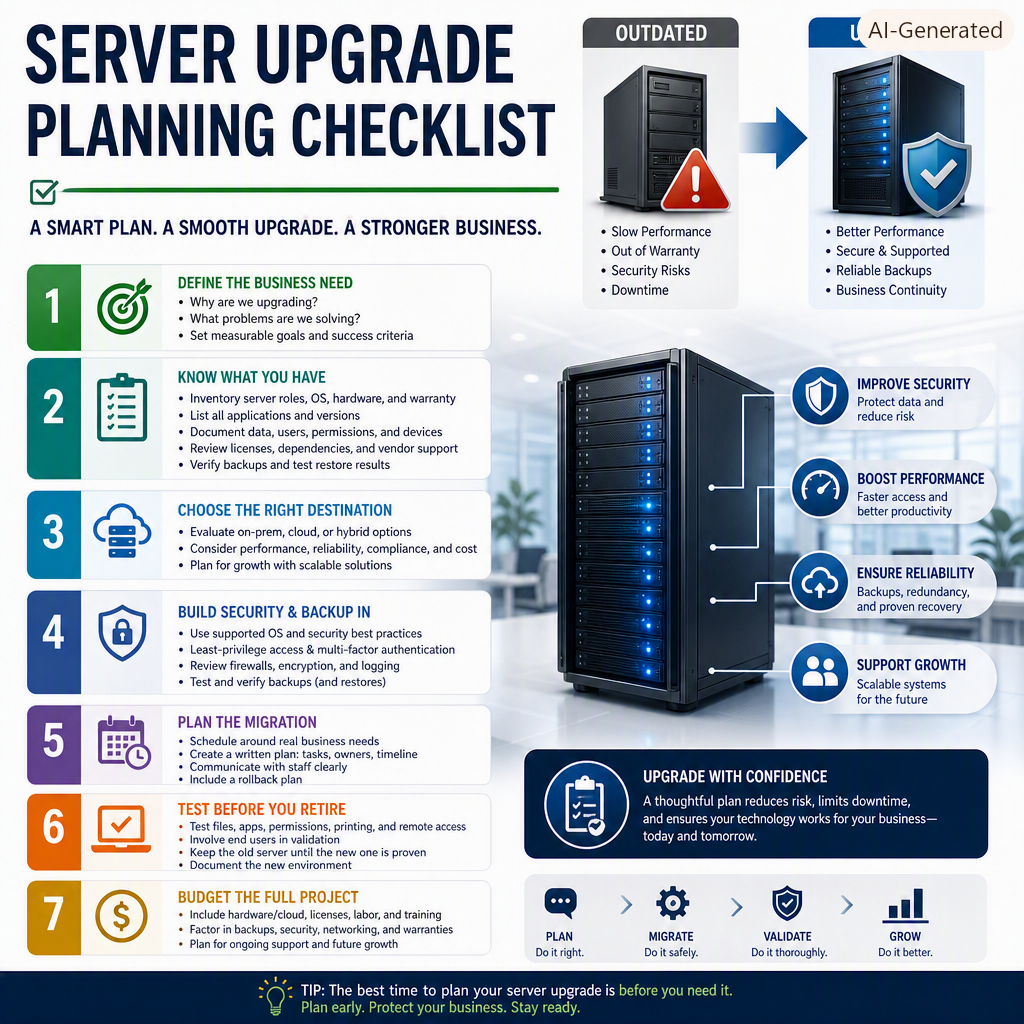
A server that is slow, out of warranty, or running unsupported software can become a business interruption waiting to happen. A thoughtful server upgrade planning checklist helps you replace or modernize that foundation without discovering, on a busy Monday morning, that a critical application, shared file, or backup was left behind.
For a small or midsize organization, a server upgrade is rarely just a hardware purchase. It affects the tools your staff use, how your data is protected, the security requirements you must meet, and the amount of downtime your customers will tolerate. The right plan turns a potentially stressful project into a controlled change with a clear path forward and a safe way back if needed.
Start With the Business Reason for the Upgrade
Before comparing server models or cloud subscriptions, define what is driving the project. The answer may be aging equipment, a storage shortage, repeated performance issues, an expired warranty, a move to new software, or a need to improve cybersecurity. Sometimes the best outcome is not a larger on-premises server at all. A cloud-based service, a hybrid setup, or a redesigned file-sharing approach may fit the way your organization works better.
Talk with the people who rely on the system every day. Your accounting team may be concerned about application speed, while managers may need secure remote access and your operations staff may care most about keeping shared files available. These conversations keep the upgrade focused on business outcomes rather than specifications that look good on paper but do not solve the real problem.
Set a few measurable goals. For example, you may want to reduce unplanned downtime, support 25 percent more staff, improve recovery time after an outage, or retire an unsupported operating system before it creates a security risk. Those goals will guide every decision that follows.
Server Upgrade Planning Checklist: Know What You Have
A reliable upgrade begins with an accurate inventory. Many organizations know where their main server sits but do not have a current record of everything it supports. That gap is where costly surprises happen.
Document the server’s roles, operating system, processor and memory use, storage capacity, network connections, and warranty status. More importantly, document the services running on it. These might include file sharing, line-of-business software, databases, print services, user accounts, remote access, phone system components, or backup software.
Your inventory should also identify:
- Every application and version hosted on or connected to the server
- Data locations, file sizes, retention requirements, and ownership
- User groups, permissions, shared folders, and remote-access needs
- Connected devices such as workstations, scanners, printers, network storage, and specialized equipment
- Software licenses, vendor support agreements, and system dependencies
- Backup schedules, backup destinations, and the results of recent restore tests
Do not assume an old server is only holding old files. A forgotten database, scheduled task, or application license server can stop an essential process after migration. If a third-party vendor supports a key business application, ask them early about supported operating systems, database versions, and migration requirements. Their answer may affect your timeline and budget.
Choose the Right Destination, Not Just New Hardware
The upgrade path depends on your workload, budget, internet reliability, compliance needs, and internal processes. A new physical server may make sense when you run specialized software locally, need predictable performance, or work with large files that are impractical to move across an internet connection. It can also be a sensible choice for organizations that need local access during an internet outage.
Cloud services can reduce the need to maintain some local infrastructure and can make remote access easier. However, cloud costs are ongoing, and not every legacy application is suited to the cloud. A hybrid approach often works well: keep certain applications or data local while moving email, collaboration, and selected files to cloud services.
Avoid sizing the new environment only for today’s needs. Review growth plans, new locations, remote staff, expected data growth, and upcoming software changes. At the same time, do not pay for capacity that will sit unused for years. A scalable design is often more practical than buying the largest system available.
Build Security and Backup Into the Project
An upgrade is an opportunity to fix inherited security issues rather than carry them into a newer system. Confirm that the new server will run a supported operating system, receive security updates, use strong administrator credentials, and follow least-privilege access principles. Staff should have access to the files and applications required for their work, not broad access simply because that was how the old system was configured.
Review endpoint protection, firewall rules, multi-factor authentication, remote access, encryption, and event logging. Healthcare providers, legal offices, nonprofits handling sensitive client records, and professional service firms may also have privacy or contractual obligations that affect where data can be stored and who can access it.
Backups deserve their own conversation. A backup that has never been restored is not a proven recovery plan. Before migration, make at least one verified backup of the existing system and confirm that key files and applications can be restored. After migration, test the new backup process as well. Keep a protected copy separate from the production environment so ransomware, hardware failure, or a mistaken deletion does not affect both the live data and the backup.
Plan the Migration Around Real Work
The technical migration window should be based on how your business operates. For some organizations, an evening or weekend cutover is best. For others, month-end, payroll periods, clinic hours, seasonal demand, or scheduled events make certain dates unacceptable. A short outage at the wrong time can have a bigger impact than a longer outage during a quiet period.
Create a written migration plan that names who is responsible for each action, when it will happen, and how success will be confirmed. It should include pre-migration checks, data transfer steps, application configuration, user testing, communication to staff, and a rollback plan. The rollback plan matters. If a critical system fails testing, everyone should know whether the team will fix it immediately or return operations to the previous server while the issue is resolved.
Communicate in plain language before the work begins. Staff need to know when systems may be unavailable, what they should save or close before the change, whether passwords or file locations will change, and who to contact if something does not work afterward. Clear communication prevents a technical project from feeling like an unexpected disruption.
Test Before You Retire the Old Server
Do not decommission the old server as soon as the data appears on the new one. Run practical tests with the people who use the systems. Open shared files, print documents, confirm permissions, test remote access, process a sample transaction, and check any specialized software. Test both the expected workflow and the exceptions that staff encounter in real life.
Keep the original server available, but isolated as appropriate, until the new environment has operated successfully through a normal business cycle. The right period varies. A simple file-server migration may need only a few days of validation, while a server supporting payroll, billing, or case-management software may need to remain available through month-end processing.
Document the new environment before closing the project. Record administrative access procedures, network settings, warranties, licensing, vendor contacts, backup configuration, and recovery steps. This documentation reduces future support time and gives your organization a clearer picture of what it owns.
Budget for the Full Project Cost
A server quote is not a complete upgrade budget. Include hardware or cloud subscriptions, operating system and application licenses, labor for planning and migration, backup improvements, security tools, network upgrades, warranty coverage, and staff training. If older workstations or network equipment cannot support the new environment, address that early instead of treating it as a last-minute surprise.
The lowest initial price is not always the lowest operational cost. Equipment without adequate warranty coverage, insufficient storage, or room for growth can create another urgent project far sooner than expected. Conversely, a fully cloud-based design may reduce hardware costs but introduce recurring expenses that need to be planned over several years.
A dependable IT partner can help translate these choices into practical trade-offs. Myriad Technologies approaches server projects by first understanding how the organization works, then recommending a plan that protects continuity without overselling technology.
The best time to plan a server upgrade is while the current system is still functioning well enough to give you choices. With a tested plan, verified backups, and a migration schedule built around your people, the upgrade becomes one more careful investment in keeping your business available, protected, and ready for what comes next.